Publishing an Android app in 2026 is more than just hitting “upload.” With Google’s latest security updates, developer verification rules, and mandatory testing phases, the process has become more structured. Whether you are a first-time developer or a seasoned pro, this guide will walk you through the entire journey—from account setup to the final production release.
🚀 What’s New in 2026?
Before we dive in, it’s important to note two major shifts in the Google Play ecosystem:
- Mandatory Testing: All personal accounts created after November 2023 must now complete a closed testing phase with at least 12 to 20 testers for 14 consecutive days.
- Global Developer Verification: Starting in September 2026, Google requires all apps to be registered by verified developers. If you haven’t completed your identity verification, your app might be blocked from installation on certified Android devices.
Step 1: Set Up Your Google Play Developer Account
To get started, you need a developer account.
- The Cost: A one-time fee of $25.
- Verification: You will need to provide your legal name, address, and phone number. For organizations, a D-U-N-S number is now mandatory.
- Console Link: Google Play Console
Step 2: Pass the 14-Day Testing Phase (Crucial!)
For individual developers, you cannot go straight to “Production.” You must first use the Closed Testing track.
- The Requirement: You must recruit at least 20 testers (or 12, depending on your account type) who must opt-in and keep the app installed for 14 continuous days.
- Pro Tip: Don’t wait until your app is 100% finished. You can start this “clock” with a stable beta version while you polish the final features.
Step 3: Prepare Your Store Assets (ASO)
Your “Store Listing” is your first impression. You need professional icons and screenshots to rank well and convert visitors into users.
App Icons
Don’t just resize a single image. Use an icon generator to create the various sizes needed for Android (and iOS).
- Recommended Tool: App Icon Generator Guide
- How-to: Once generated, replace the
mipmapfolders in your Android Studio project to ensure your logo looks sharp on every device.
Professional Screenshots
Screenshots should tell a story. Instead of raw phone captures, use 2D or 3D templates to add device frames and descriptive text.
- Recommended Tool: Screenshot Generation Guide
- Tip: Use sites like
previewed.appto create high-resolution images that meet Google’s 2-8 screenshot requirement.
Step 4: Privacy Policy & Data Safety
Google is extremely strict about user privacy in 2026. Every app must have a Privacy Policy URL.
- The Solution: If you don’t have a website, you can use Google Sites to host a free, ad-free privacy policy page.
- Tutorial: How to Create Privacy Policy for App
- Data Safety: You must accurately declare what data you collect (Email, Location, etc.) in the Play Console’s Data Safety section. Mismatches here are the #1 cause of app rejection.
Step 5: Upload the Android App Bundle (AAB)
Forget APKs; the Android App Bundle (.aab) is the standard. It’s smaller, more secure, and optimized for different device configurations.
- Step: Go to Release > Production (once testing is cleared), upload your
.aabfile, and write your “Release Notes.”
Step 6: Review & Submit
Once everything is filled out—from Content Ratings to the “Age Signals API”—hit the Submit for Review button.
- Wait Time: In 2026, reviews for new accounts usually take 3 to 7 days.
- Common Rejections: Ensure your app doesn’t crash on startup and that your “App Content” declarations match your app’s actual behavior.
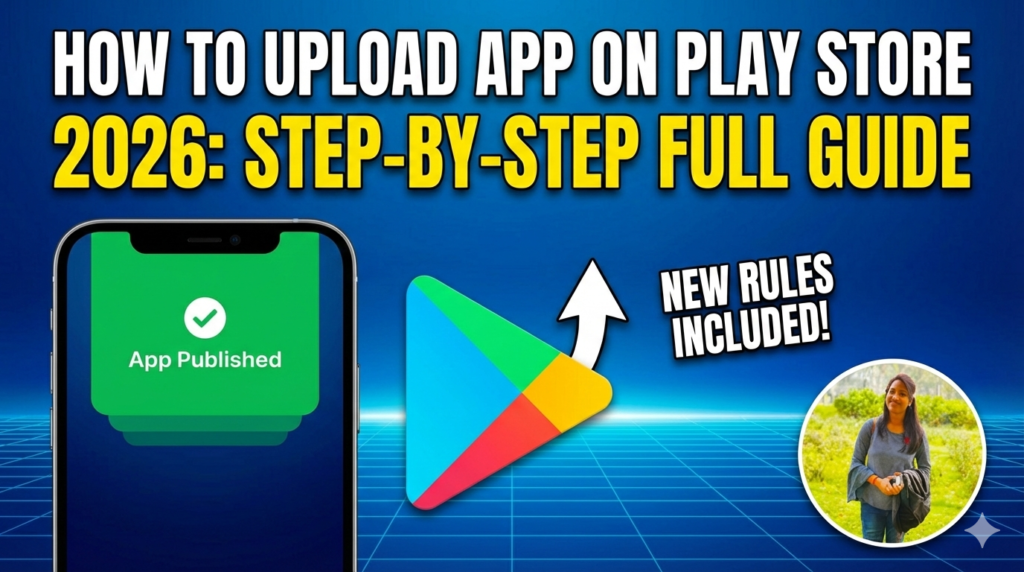
How to Upload App on Play Store 2026: Step-by-Step Full Guide
Helpful Resources for Developers
Conclusion: Publishing in 2026 requires patience, especially with the 14-day testing rule. Plan your launch at least three weeks in advance to account for testing and review times. Good luck with your launch!
#AndroidDev #AppDevelopment #GooglePlayConsole #PublishApp2026 #GooglePlayStore
Related Articles
- Mastering SOLID Principles in Flutter: Building Scalable Apps
- How to make Ludo app in Flutter with Source Code Step by step
- What is package in Flutter (Dart) with example in 2024
- What is class in Flutter(Dart) with example step by step
- Advantage of Flutter with examples in 2024
- Top 15 Amazing Applications Built with Flutter Framework
- Specialized PDF reader designed specifically for music sheets
- Christmas Quote Generator app built with flutter source code
- How to make review and rating ui with flutter stepwise
- GitHub Mac Setup: Upload Your First Project (Step-by-Step)

0 Comments