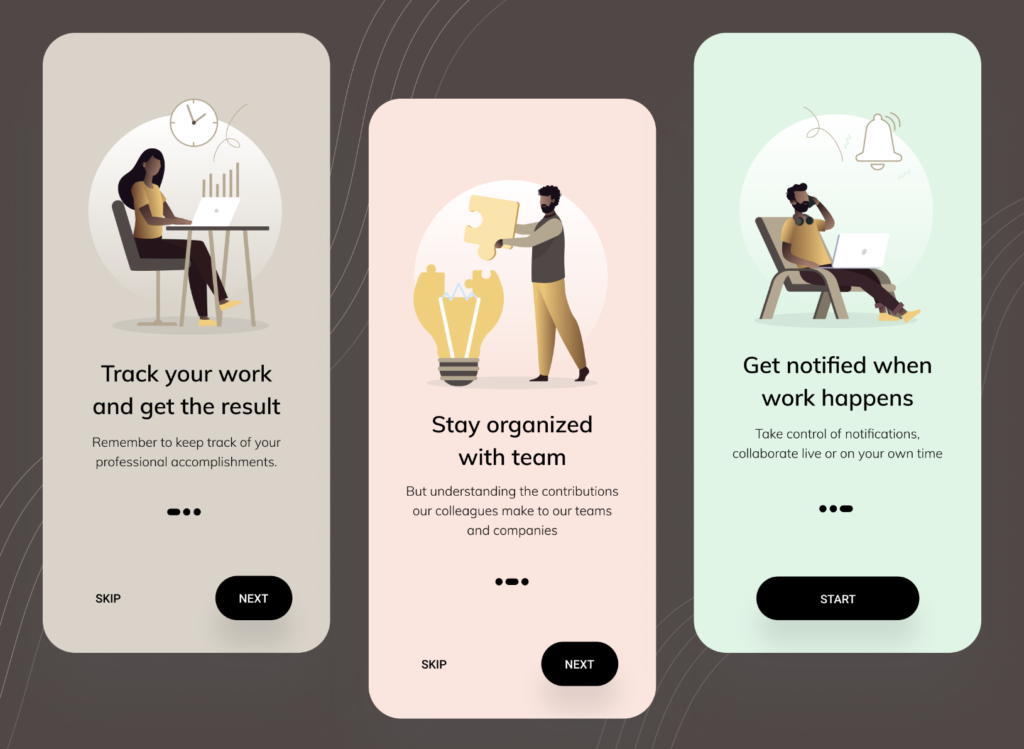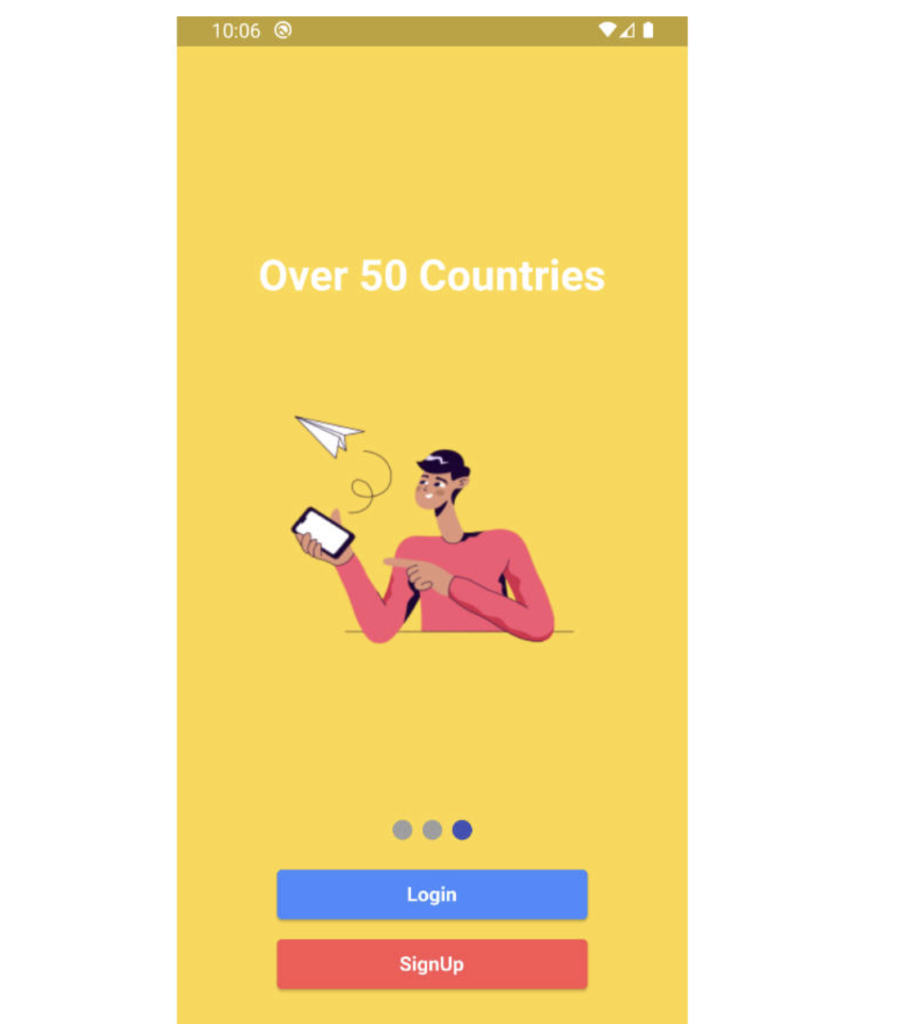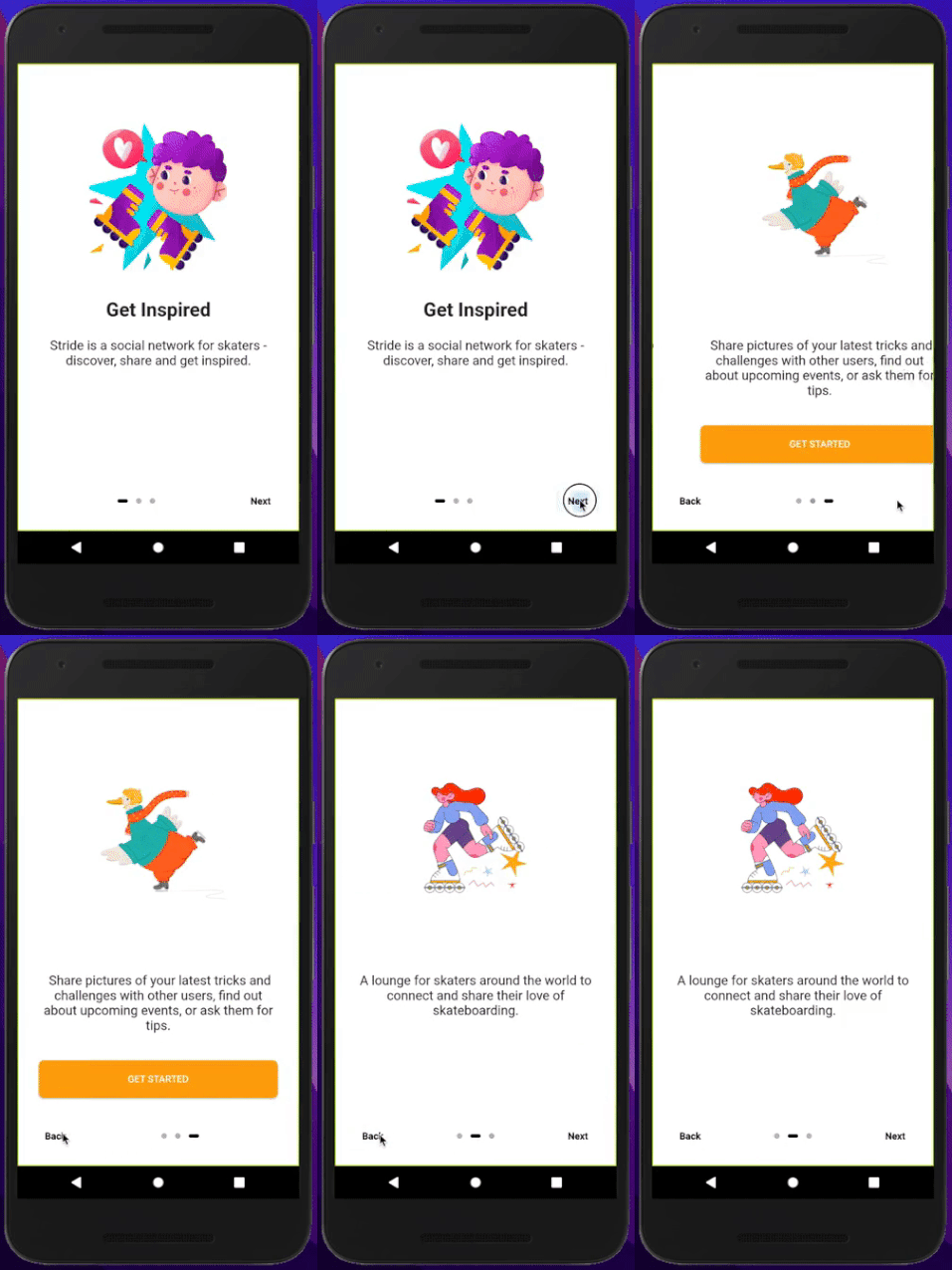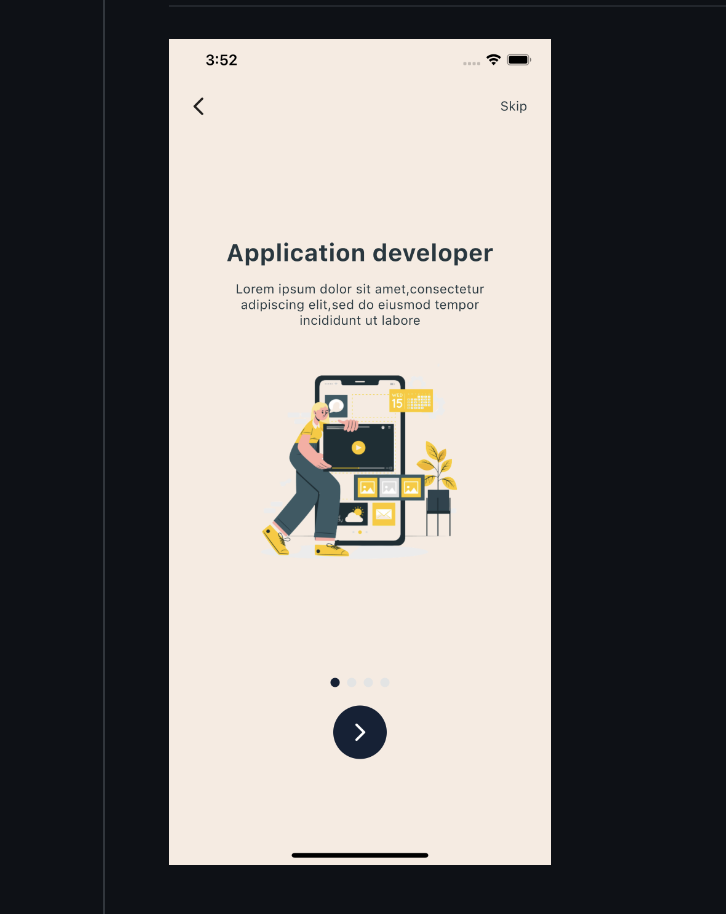
If you have ever used a mobile app for the first time and swiped through a series of welcome screens before hitting "Get Started" — that is a PageView in action. The Flutter PageView widget is one of the most useful and commonly used widgets for building onboarding flows, image carousels, and multi-step experiences.
In this guide, we build a complete skippable onboarding screen using Flutter's PageView widget — with full source code, step-by-step explanation, and best practices.
What is the Flutter PageView Widget?
The PageView widget in Flutter is a scrollable list that works page by page. Unlike a regular ListView that scrolls continuously, PageView snaps to each page as the user swipes — making it perfect for onboarding screens, tutorials, and image galleries.

Flutter provides three types of PageView:
PageView— basic page-by-page scrollingPageView.builder— efficient for dynamic or large page countsPageView.custom— for custom page building logic
For our skippable onboarding screen, we will use PageView.builder.
What We Are Building
A clean, skippable onboarding screen with the following features:
- 3 onboarding pages with title, description, and icon
- Smooth page swiping with
PageView - Dot indicators showing current page position
- Skip button to jump directly to the last page
- Next button to go to the next page
- Get Started button on the final page
Step 1: Project Setup
Create a new Flutter project and open main.dart. Make sure your Flutter version is 3.0 or above with null safety enabled.
flutter create flutter_pageview_onboarding
cd flutter_pageview_onboarding
No additional packages are needed — this is built entirely with Flutter's built-in widgets.
Step 2: Create the Onboarding Data Model
Create a simple model to hold each page's content.
class OnboardingModel {
  final String title;
  final String description;
  final IconData icon;
  final Color color;

  OnboardingModel({
    required this.title,
    required this.description,
    required this.icon,
    required this.color,
  });
}
Step 3: Define Onboarding Pages Data
final List<OnboardingModel> onboardingPages = [
  OnboardingModel(
    title: "Welcome to the App",
    description:
        "Discover amazing features designed to make your life easier and more productive every single day.",
    icon: Icons.rocket_launch_rounded,
    color: Color(0xFF6C63FF),
  ),
  OnboardingModel(
    title: "Stay Organized",
    description:
        "Keep track of everything that matters. Manage your tasks, goals, and progress all in one place.",
    icon: Icons.check_circle_rounded,
    color: Color(0xFF00BFA5),
  ),
  OnboardingModel(
    title: "Get Started Today",
    description:
        "Join thousands of users already using the app. Set up your account in seconds and start now.",
    icon: Icons.emoji_events_rounded,
    color: Color(0xFFFF6B6B),
  ),
];
Step 4: Build the Onboarding Screen
Create a new file called onboarding_screen.dart.
import 'package:flutter/material.dart';
import 'onboarding_model.dart';

class OnboardingScreen extends StatefulWidget {
  const OnboardingScreen({super.key});

  @override
  State<OnboardingScreen> createState() => _OnboardingScreenState();
}

class _OnboardingScreenState extends State<OnboardingScreen> {
  final PageController _pageController = PageController();
  int _currentPage = 0;

  final List<OnboardingModel> _pages = [
    OnboardingModel(
      title: "Welcome to the App",
      description:
          "Discover amazing features designed to make your life easier and more productive every single day.",
      icon: Icons.rocket_launch_rounded,
      color: Color(0xFF6C63FF),
    ),
    OnboardingModel(
      title: "Stay Organized",
      description:
          "Keep track of everything that matters. Manage your tasks, goals, and progress all in one place.",
      icon: Icons.check_circle_rounded,
      color: Color(0xFF00BFA5),
    ),
    OnboardingModel(
      title: "Get Started Today",
      description:
          "Join thousands of users already using the app. Set up your account in seconds and start now.",
      icon: Icons.emoji_events_rounded,
      color: Color(0xFFFF6B6B),
    ),
  ];

  void _onPageChanged(int index) {
    setState(() {
      _currentPage = index;
    });
  }

  void _skipToLastPage() {
    _pageController.animateToPage(
      _pages.length - 1,
      duration: const Duration(milliseconds: 400),
      curve: Curves.easeInOut,
    );
  }

  void _nextPage() {
    if (_currentPage < _pages.length - 1) {
      _pageController.nextPage(
        duration: const Duration(milliseconds: 400),
        curve: Curves.easeInOut,
      );
    } else {
      _navigateToHome();
    }
  }

  void _navigateToHome() {
    Navigator.pushReplacement(
      context,
      MaterialPageRoute(builder: (context) => const HomeScreen()),
    );
  }

  @override
  void dispose() {
    _pageController.dispose();
    super.dispose();
  }

  @override
  Widget build(BuildContext context) {
    return Scaffold(
      backgroundColor: Colors.white,
      body: SafeArea(
        child: Column(
          children: [
            _buildSkipButton(),
            _buildPageView(),
            _buildDotIndicators(),
            const SizedBox(height: 30),
            _buildNextButton(),
            const SizedBox(height: 30),
          ],
        ),
      ),
    );
  }

  Widget _buildSkipButton() {
    return Align(
      alignment: Alignment.topRight,
      child: Padding(
        padding: const EdgeInsets.only(top: 16, right: 16),
        child: _currentPage < _pages.length - 1
            ? TextButton(
                onPressed: _skipToLastPage,
                child: const Text(
                  "Skip",
                  style: TextStyle(
                    fontSize: 16,
                    color: Colors.grey,
                    fontWeight: FontWeight.w500,
                  ),
                ),
              )
            : const SizedBox(height: 40),
      ),
    );
  }

  Widget _buildPageView() {
    return Expanded(
      child: PageView.builder(
        controller: _pageController,
        onPageChanged: _onPageChanged,
        itemCount: _pages.length,
        itemBuilder: (context, index) {
          return _buildPageContent(_pages[index]);
        },
      ),
    );
  }

  Widget _buildPageContent(OnboardingModel page) {
    return Padding(
      padding: const EdgeInsets.symmetric(horizontal: 32),
      child: Column(
        mainAxisAlignment: MainAxisAlignment.center,
        children: [
          Container(
            width: 160,
            height: 160,
            decoration: BoxDecoration(
              color: page.color.withOpacity(0.1),
              shape: BoxShape.circle,
            ),
            child: Icon(
              page.icon,
              size: 80,
              color: page.color,
            ),
          ),
          const SizedBox(height: 48),
          Text(
            page.title,
            textAlign: TextAlign.center,
            style: const TextStyle(
              fontSize: 26,
              fontWeight: FontWeight.bold,
              color: Colors.black87,
            ),
          ),
          const SizedBox(height: 16),
          Text(
            page.description,
            textAlign: TextAlign.center,
            style: const TextStyle(
              fontSize: 16,
              color: Colors.grey,
              height: 1.6,
            ),
          ),
        ],
      ),
    );
  }

  Widget _buildDotIndicators() {
    return Row(
      mainAxisAlignment: MainAxisAlignment.center,
      children: List.generate(
        _pages.length,
        (index) => AnimatedContainer(
          duration: const Duration(milliseconds: 300),
          margin: const EdgeInsets.symmetric(horizontal: 4),
          width: _currentPage == index ? 24 : 8,
          height: 8,
          decoration: BoxDecoration(
            color: _currentPage == index
                ? _pages[_currentPage].color
                : Colors.grey.shade300,
            borderRadius: BorderRadius.circular(4),
          ),
        ),
      ),
    );
  }

  Widget _buildNextButton() {
    return Padding(
      padding: const EdgeInsets.symmetric(horizontal: 32),
      child: SizedBox(
        width: double.infinity,
        height: 56,
        child: ElevatedButton(
          onPressed: _nextPage,
          style: ElevatedButton.styleFrom(
            backgroundColor: _pages[_currentPage].color,
            shape: RoundedRectangleBorder(
              borderRadius: BorderRadius.circular(16),
            ),
            elevation: 0,
          ),
          child: Text(
            _currentPage == _pages.length - 1 ? "Get Started" : "Next",
            style: const TextStyle(
              fontSize: 18,
              fontWeight: FontWeight.w600,
              color: Colors.white,
            ),
          ),
        ),
      ),
    );
  }
}
Step 5: Create a Simple Home Screen
Create home_screen.dart as the destination after onboarding completes.
import 'package:flutter/material.dart';

class HomeScreen extends StatelessWidget {
  const HomeScreen({super.key});

  @override
  Widget build(BuildContext context) {
    return Scaffold(
      appBar: AppBar(
        title: const Text("Home"),
        backgroundColor: Color(0xFF6C63FF),
        foregroundColor: Colors.white,
      ),
      body: const Center(
        child: Text(
          "Welcome! Onboarding Complete.",
          style: TextStyle(
            fontSize: 20,
            fontWeight: FontWeight.w500,
          ),
        ),
      ),
    );
  }
}
Step 6: Update main.dart
import 'package:flutter/material.dart';
import 'onboarding_screen.dart';

void main() {
  runApp(const MyApp());
}

class MyApp extends StatelessWidget {
  const MyApp({super.key});

  @override
  Widget build(BuildContext context) {
    return MaterialApp(
      title: 'Flutter PageView Onboarding',
      debugShowCheckedModeBanner: false,
      theme: ThemeData(
        useMaterial3: true,
      ),
      home: const OnboardingScreen(),
    );
  }
}
Key PageView Concepts Explained
1. PageController
The PageController is the brain of your PageView. It controls which page is currently visible, allows programmatic navigation, and tracks the current page index.
final PageController _pageController = PageController();
Always dispose of it in the dispose() method to avoid memory leaks:
@override
void dispose() {
  _pageController.dispose();
  super.dispose();
}
2. onPageChanged Callback
This callback fires every time the user swipes to a new page. We use it to update _currentPage and rebuild the UI — refreshing the dot indicators, button text, and skip button visibility.
onPageChanged: (index) {
  setState(() {
    _currentPage = index;
  });
}
3. animateToPage for Skip
The skip button uses animateToPage to jump directly to the last page with a smooth animation:
_pageController.animateToPage(
  _pages.length - 1,
  duration: const Duration(milliseconds: 400),
  curve: Curves.easeInOut,
);
4. Animated Dot Indicators
Using AnimatedContainer for dots gives a smooth width transition between active and inactive states — a small detail that makes the UI feel polished and professional.
Best Practices for Flutter Onboarding Screens
- Keep it to 3 pages maximum — more than 3 pages increases drop-off rate
- Always provide a Skip button — never force users through onboarding
- Use meaningful icons or illustrations — not just text
- Make the Get Started button prominent on the last page
- Store onboarding completion in
SharedPreferencesso it only shows once - Test on both Android and iOS — PageView behaves identically on both
How to Show Onboarding Only Once
Use shared_preferences to remember if the user has already seen onboarding:
import 'package:shared_preferences/shared_preferences.dart';

Future<bool> hasSeenOnboarding() async {
  final prefs = await SharedPreferences.getInstance();
  return prefs.getBool('seen_onboarding') ?? false;
}

Future<void> setOnboardingSeen() async {
  final prefs = await SharedPreferences.getInstance();
  await prefs.setBool('seen_onboarding', true);
}
Call setOnboardingSeen() when the user taps "Get Started" and check hasSeenOnboarding() in main.dart to decide which screen to show first.
Conclusion
The Flutter PageView widget is a powerful, flexible tool for building smooth, skippable onboarding experiences. With PageController, animated dot indicators, and a clean skip button, you can deliver a professional first-time user experience that increases retention and engagement.
The full source code above is ready to drop into any Flutter project — customize the colors, icons, and text to match your brand and you are good to go.
Happy coding!
Related Articles
- Android Developer vs Flutter Developer: Which Should You Choose in 2026?
- Flutter Developer vs Swift Developer: Which is Best for Your App?
- Flutter Developer vs React Native Developer: Full Comparison 2026
- How to Setup GitHub on Your MacBook and Upload Your First Project
- Top 10 Companies Using Flutter in Production Apps 2026
- How to Build a Flutter App for the US Market — Complete Guide
- Flutter App Development in China — What Developers Need to Know
- A Responsive flutter onboarding UI screen source code
- Flutter Splash Screen with Animation Source code
- Flutter 2026 — All Latest Updates, Features & What's New